Open Home Register
info
Capture attendee details at your next open home with QR code check-in. Attendees scan a code, fill in their own details on their phone, and you download the complete list as a CSV once the open home wraps up.
Creating an Open Home Attendees Form#
Click
Createfrom theFormspage.Select the
Open House Visitor Register (QR Code)form from the list.Complete the property details, including the
property address, then fill in any remaining agent or listing details.Finalise the form. See our guide on Finalising a Form if you need a hand with this step.
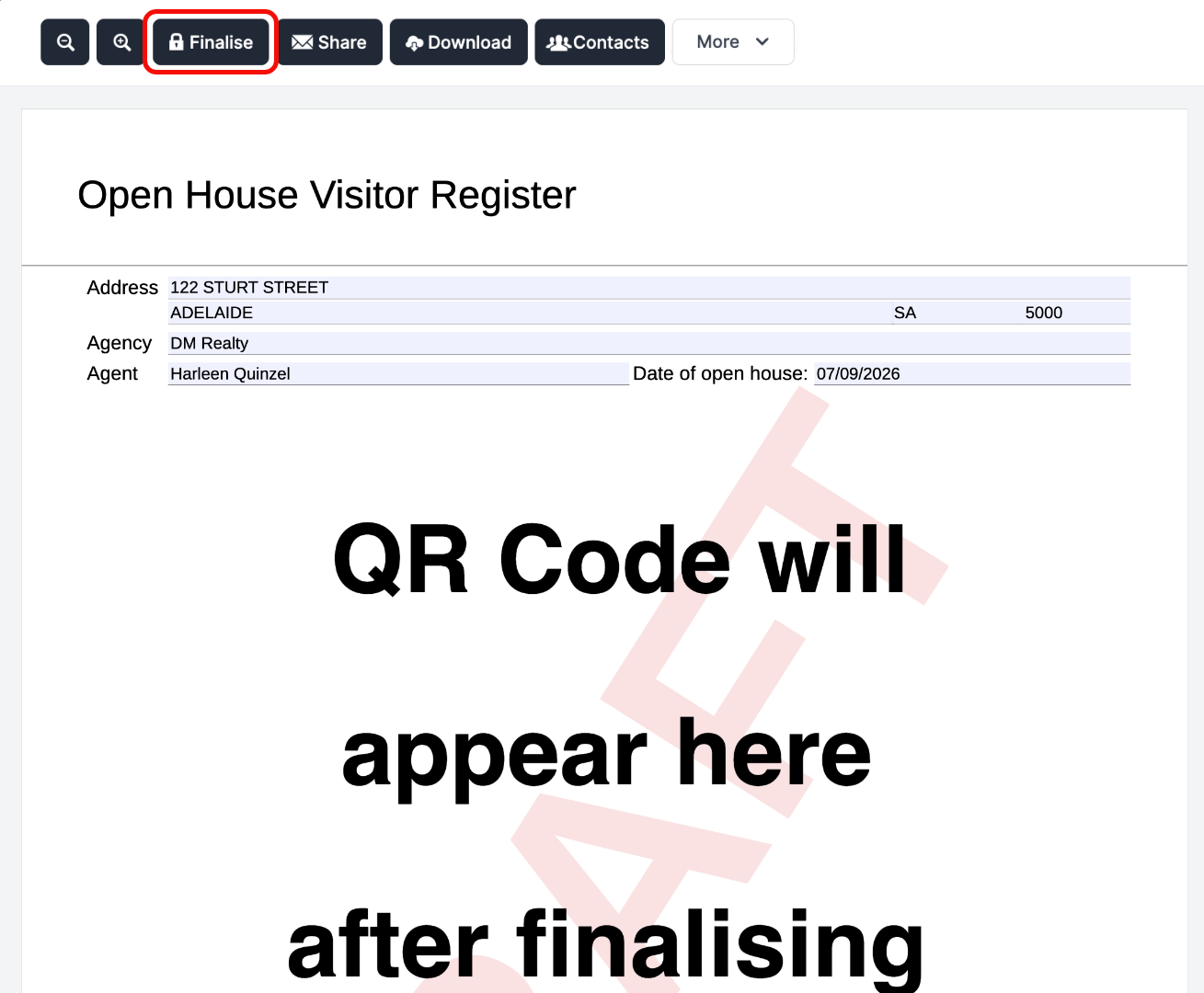
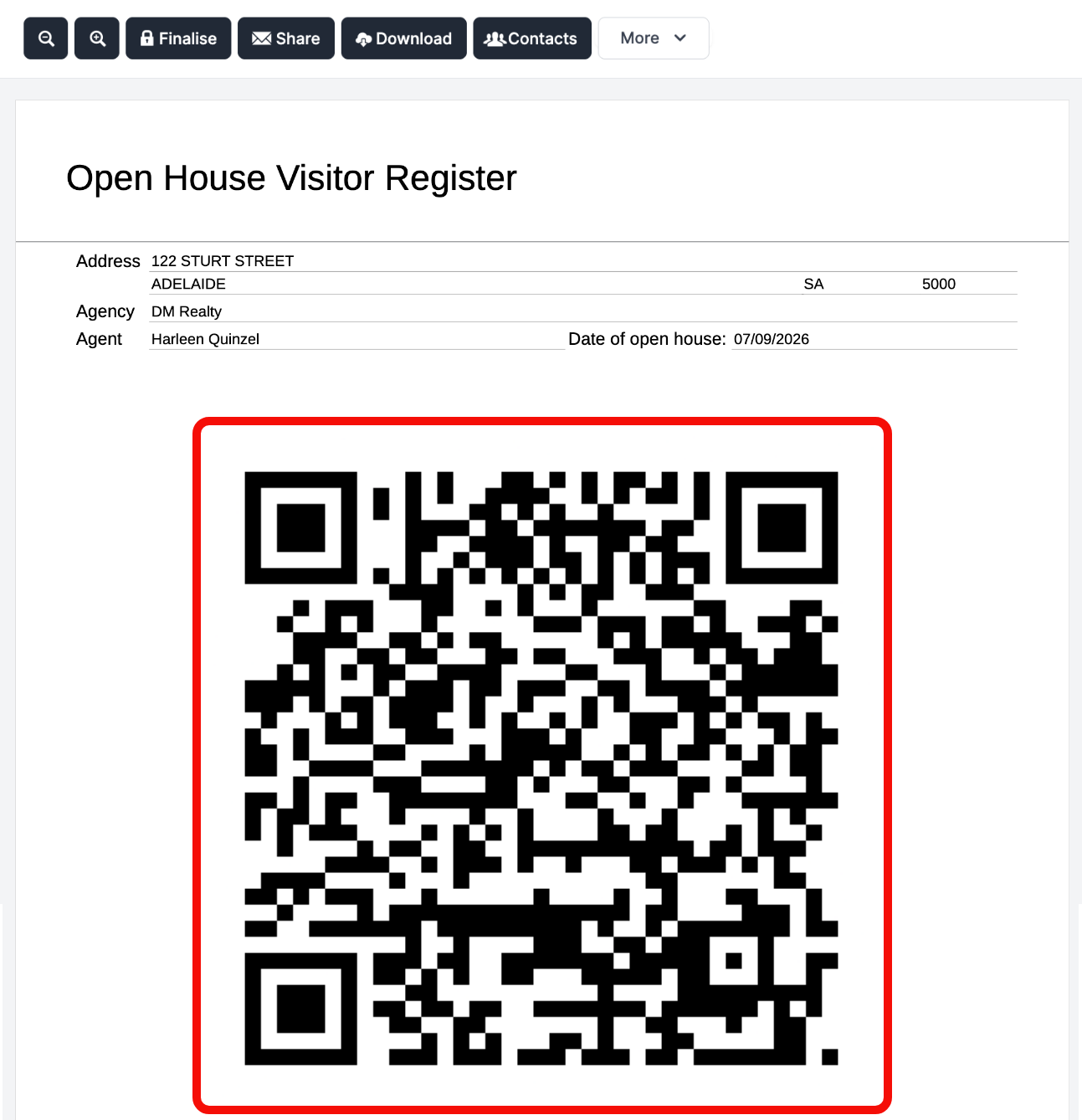
Once finalised, a unique QR code is generated for that listing.
Setting Up Check-In at the Property#
Print the QR code or display it on a tablet or sign at the property. See our guide on Downloading and Printing a Form.
Attendees scan the code with their phone camera — no app is needed.
They land on the mobile-friendly
Open House Check-Inform and enter theirfirst name,last name,email addressandmobile number.They select whether they are
Browsing,InterestedorSelling, and record their consent to follow-up.Tapping
Check-inregisters them instantly.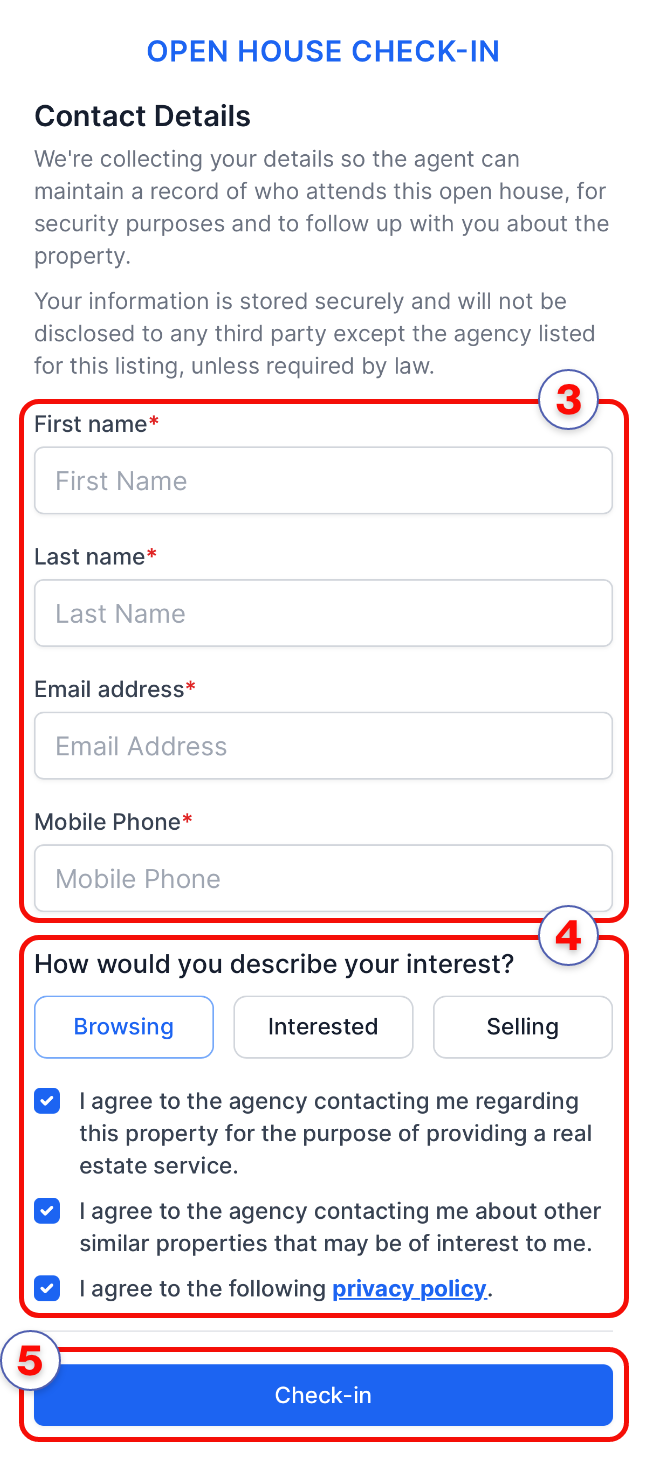
Downloading Attendee Details#
Once the open home has finished, return to the form to collect the attendee list.
Go to the
Formspage and locate the finalisedOpen Home Attendeesform.Open the form.
Click the
Contactsbutton.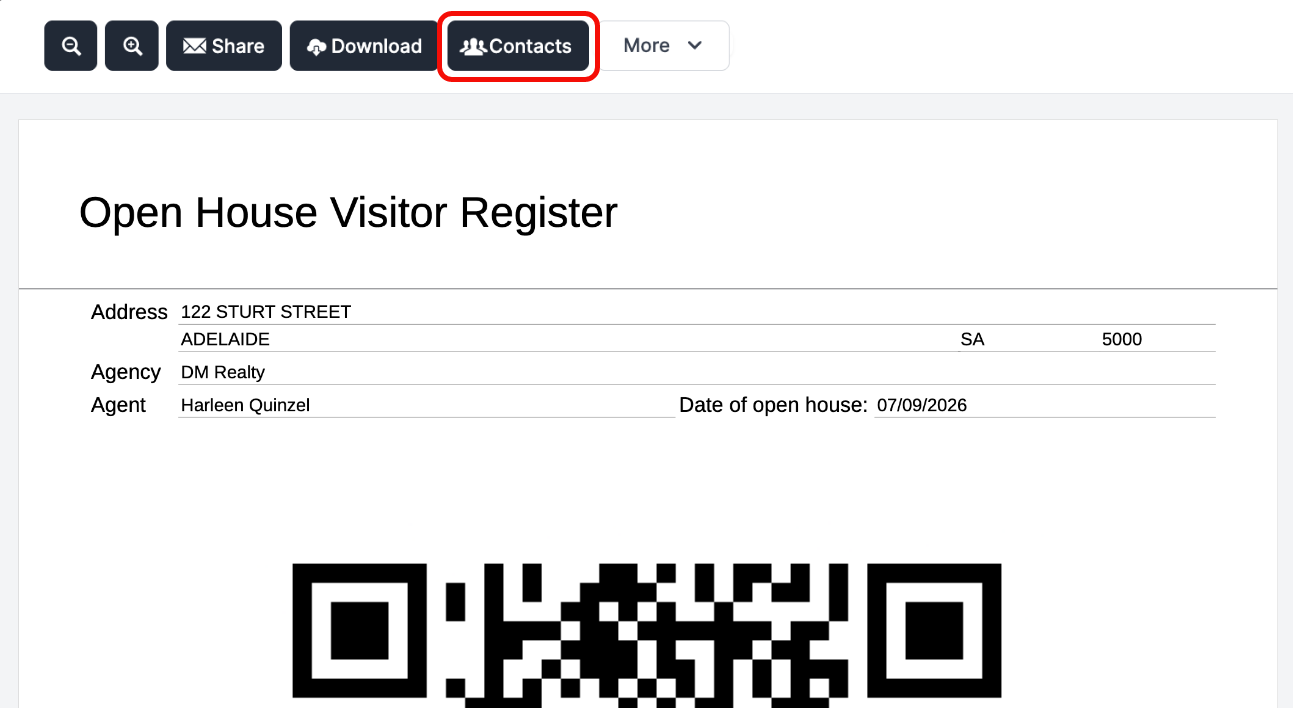
A CSV file downloads automatically, containing each attendee's name, email, mobile number and stated interest level (Browsing, Interested or Selling).
The CSV is ready to open in Excel or load straight into your CRM for follow-up.
info
Attendees who select Interested or Selling may be worth calling first. Those Browsing can still be followed up according to the communication preference they recorded at check-in.